

⚠️ Read this before downgrading anything. Samsung’s rollback prevention is enforced in hardware and, per Samsung’s own documentation, is not reversible. A rejected bootloader downgrade is one of the few operations in firmware flashing that cannot be undone.
Table of contents
- Quick answer
- What the bootloader is, and what the BL file contains
- Rollback prevention: what Samsung officially documents
- SW REV CHECK FAIL: what the error actually means
- Reading the bootloader build from your firmware
- How to check your bootloader version
- Can you downgrade the bootloader?
- What is not publicly documented
- Frequently asked questions
Quick answer
The bootloader is the low-level code that starts your Galaxy device, shipped in the BL file of a firmware package. Samsung enforces rollback prevention in hardware: fuses store the minimum acceptable bootloader version, and once set they cannot be reverted. If you try to flash firmware whose bootloader is older than what the fuses permit, Odin rejects it — commonly reported as SW REV CHECK FAIL. In a Samsung firmware package the BL file carries the same build identifier as the AP file, so your Build number is enough to compare a candidate download against what you are running.
What you’ll learn
- What the BL file is and what it is responsible for
- What Samsung officially documents about rollback prevention — quoted, with a source
- What SW REV CHECK FAIL means and why it is not a bug
- How to compare a firmware download against your installed build
- Which parts of a build string are genuinely undocumented
What the bootloader is, and what the BL file contains
The bootloader is the first code that runs when you power on the device. It initialises the hardware and starts the chain that eventually loads Android. Because it runs before the operating system, it is also where secure-boot checks live.
In a Samsung firmware package it ships as the BL file, which loads into Odin’s BL slot. It is the smallest of the four components by a wide margin — the AP file, which carries the Android system itself, is typically the overwhelming majority of the download.
That size difference matters for expectations, not importance. A small BL file that fails to write correctly can stop a device from starting at all, while a much larger AP file is comparatively recoverable. See Samsung firmware files explained for the full component breakdown.
Rollback prevention: what Samsung officially documents
This section is not community folklore. The following comes from Samsung’s own Knox security documentation.
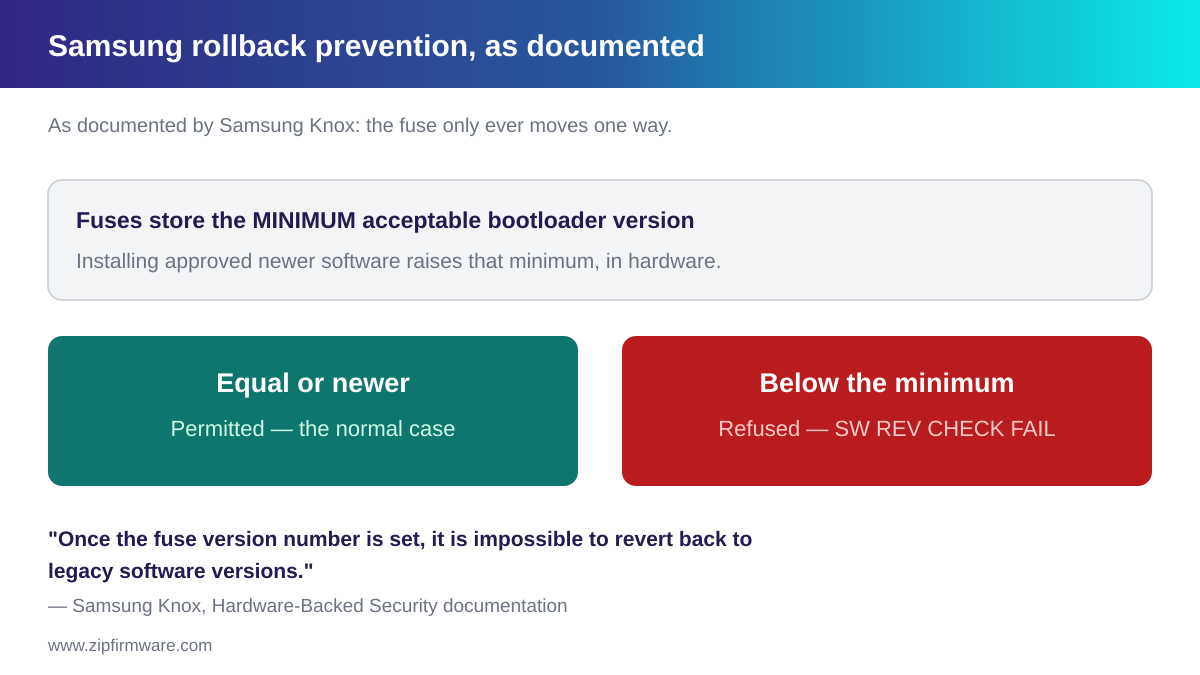
Samsung documents a hardware mechanism called Rollback Prevention (RP) fuses. In Samsung’s words, these fuses “encode the minimum acceptable version of Samsung-approved bootloaders”.
On what happens when new software is installed, the documentation states: “Once a bootloader containing approved new software is installed, it fuses the version of that bootloader to hardware, preventing old software from being loaded.”
And on reversibility — the part that matters most before you attempt a downgrade: “Once the fuse version number is set, it is impossible to revert back to legacy software versions.”
The stated purpose is security. Older firmware may contain known vulnerabilities that have since been patched; rollback prevention exists so a device cannot be pushed back onto software with those holes. Source: Samsung Knox — Hardware-Backed Security.
The practical consequence: this is not a software lock that a tool can talk its way past. It is a physical fuse state. When a downgrade is refused, the refusal is the mechanism working as designed.
SW REV CHECK FAIL: what the error actually means
If you attempt to flash a package whose bootloader is older than the version the fuses permit, Odin refuses the write. The failure is widely reported with wording along the lines of SW REV CHECK FAIL, sometimes naming the component involved.
Read it as a statement rather than a fault: the device is telling you the firmware you selected is older than the minimum it will now accept.
What this error is not:
- Not a corrupted download. Re-downloading the same firmware will produce the same refusal.
- Not a cable or driver problem. Those failures look different — see the troubleshooting section of the Odin guide.
- Not something a different Odin build fixes. The check is enforced by the device, not the tool.
The correct response is to select firmware whose bootloader is equal to or newer than what is installed.
Reading the bootloader build from your firmware
Comparing firmware versions does not usually require a separate bootloader reading, because of how Samsung names the files in a package.
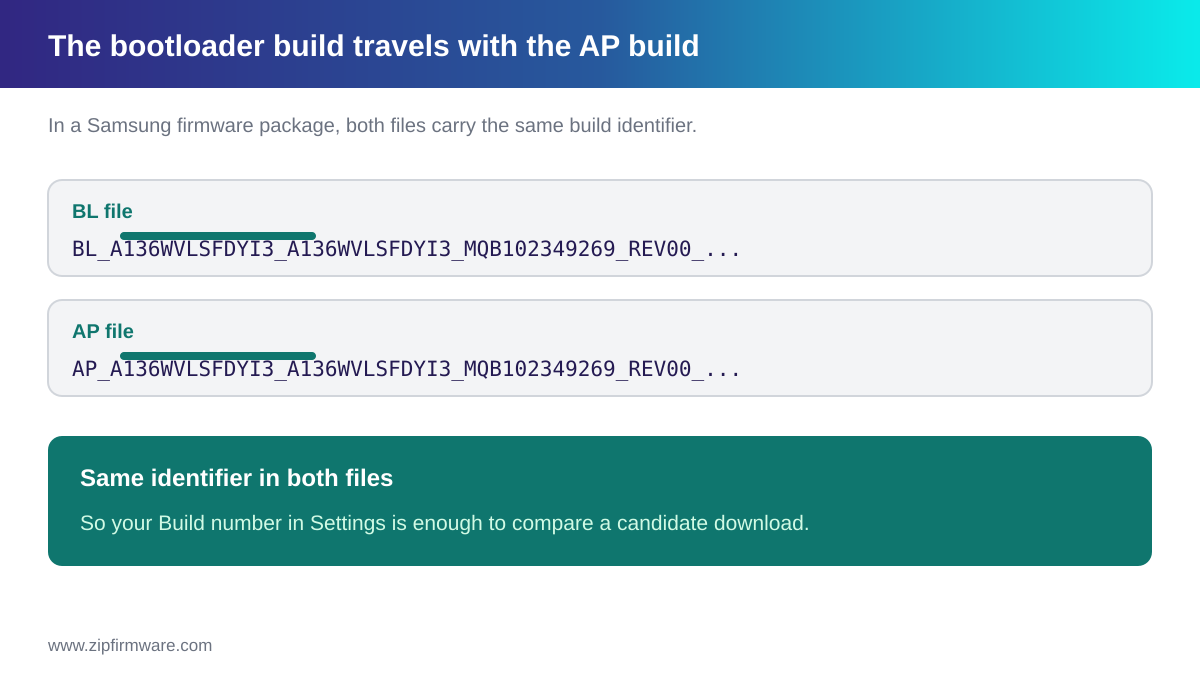
In a Samsung firmware package, the BL file carries the same build identifier as the AP file. Both begin with the model code, followed by the identifier for that release. For example:
BL_A136WVLSFDYI3_A136WVLSFDYI3_MQB102349269_REV00_...AP_A136WVLSFDYI3_A136WVLSFDYI3_MQB102349269_REV00_..._meta_OS13
Your device’s Build number, shown in Settings, corresponds to the AP component. Since the bootloader file in the same package carries that identifier too, comparing build numbers is a practical way to tell whether a candidate download is older than what you are running.
If you would rather confirm it for your specific download than rely on the shortcut, read the BL_ file name inside the extracted package directly — the build identifier follows the model code.
How to check your bootloader version
- Open Settings → About phone → Software information (wording varies by One UI version).
- Read the Build number.
- Compare that identifier against the one in the firmware package you are considering.
For the full procedure and what every other field on that screen means, see how to check your Samsung firmware version.
On many devices the Download mode screen also displays firmware information. What is shown varies by model, so read what is actually on your screen.
Can you downgrade the bootloader?
Sometimes, within limits, and the limits are set in hardware rather than by any tool.
- Moving to an equal or newer build: permitted, and the normal case.
- Moving to an older build that is still at or above the fuse minimum: may be permitted. Whether a particular older build qualifies is not something you can determine from the outside with certainty.
- Moving below the fuse minimum: refused. Per Samsung’s documentation this state is not reversible, so there is no procedure that makes it work.
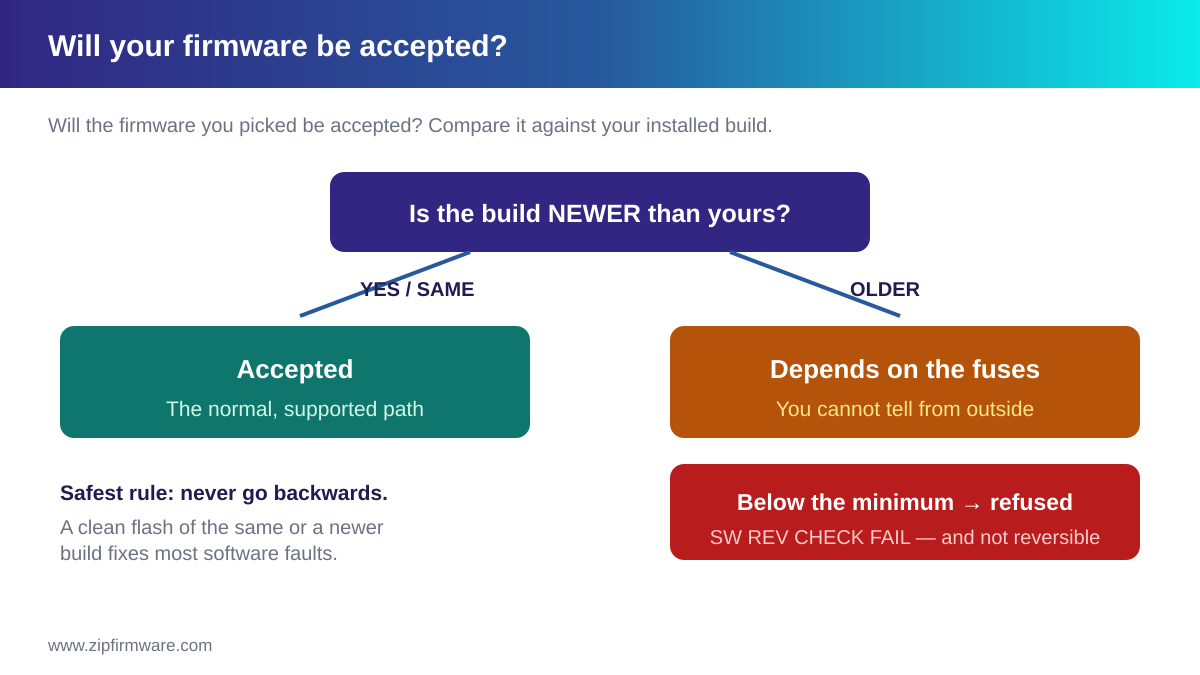
If your goal is to escape a problematic update, a downgrade is usually the wrong instrument. A clean flash of the same or newer build resolves most software faults without touching the bootloader question. See the Odin guide.
A note on honesty: you will find tools and posts that claim to bypass rollback prevention. Given that Samsung documents the mechanism as hardware fuses that cannot be reverted, treat such claims sceptically. This guide does not cover circumventing device security.
What is not publicly documented
You will find tables online claiming that a specific character position in a Samsung build string is “the bootloader version”, with a full decoding key for every other character.
We could not locate an official Samsung specification for that encoding, so this guide does not publish one. What can be said plainly is that the identifier changes between releases of a given model, and that some positions advance in an orderly sequence as updates ship.
We will not publish a character-by-character decoding table we cannot substantiate. If a decoding rule is wrong and you use it to decide a downgrade is safe, the consequence lands on your device. The safe approach does not require decoding at all: compare full build identifiers, and do not go backwards.
Frequently asked questions
What is a Samsung bootloader version?
It identifies the build of the low-level boot code installed on your device. It ships in the BL file of a firmware package, which carries the same build identifier as the AP file in that package.
What does SW REV CHECK FAIL mean?
The firmware you tried to flash has a bootloader older than the minimum your device’s rollback prevention fuses accept. Choose a build that is equal to or newer than what is installed.
Can I reset the rollback prevention fuses?
No. Samsung’s documentation states that once the fuse version is set, it is impossible to revert to legacy software versions.
Does flashing official firmware trip the Knox warranty bit?
Samsung documents the warranty bit as being set when an unsigned kernel is loaded or a critical security feature such as SELinux is disabled. Flashing official, signed firmware for your device is not that case.
How do I know which bootloader version I am on?
Read your Build number in Settings and compare full identifiers against the package you are considering. We do not recommend relying on character-position decoding tables, because we could not verify one against official documentation.
Why can’t I just use an older firmware that worked before?
If its bootloader is below your device’s fuse minimum, it will be refused regardless of it having worked previously — the fuses moved forward when you updated.
Research note
This article combines official Samsung documentation with analysis of firmware metadata indexed by ZipFirmware. Where a statement is based on measured data, the article identifies it as measured; where something is not publicly documented, we say so rather than presenting a guess as fact.
Final thoughts
Bootloader versioning is the area of Samsung firmware where bad information does the most damage, because the mistake it encourages — flashing something older — is the one that cannot be undone.
What is solid: rollback prevention is real, documented by Samsung, enforced in hardware, and irreversible. What is practical: the bootloader build travels with the AP build, so your Build number is enough to compare. What is unknown: the meaning of individual characters in the identifier, which we have declined to guess at.
Related reading:
- How to flash Samsung firmware with Odin
- Samsung firmware files explained: BL, AP, CP and CSC
- How to check your Samsung firmware version
- Samsung CSC codes explained
- How to fix a Galaxy stuck on the boot logo
Look up firmware for your exact model and region in the ZipFirmware archive.
ZipFirmware
We maintain the ZipFirmware archive of official Samsung stock ROMs. Every guide here is written from the same files you download.