

Guide info: Covers One UI 7–8.5 (Android 15–16) and One UI 9 (Android 17). Examples use live Samsung firmware records held by ZipFirmware.
Table of contents
- Quick answer
- Why your exact firmware version matters
- Check your firmware version in Settings
- Other ways to check, including when the phone will not boot
- Proof that “I’m on Android 16” is not enough
- What each part of the version string means
- Android version vs One UI version vs build number
- Checking your security patch level
- Finding your exact model number
- Checking whether you are on the latest build
- Common mistakes
- Frequently asked questions
Quick answer
To check your Samsung firmware version, open Settings → About phone → Software information. Read the Build number for the exact build, the Service provider SW ver. for your CSC (region code), and the Baseband version for the modem build. On many devices, entering *#1234# in the dialer shows the same AP, CP and CSC values on one screen. Record your model number, CSC and build number together — a firmware download must match all three.
What you’ll learn
- How to check your Samsung firmware version, step by step
- What every field on the software information screen actually means
- Why the Android version alone identifies almost nothing, shown with real data
- How to read a Samsung build number
- How to check your security patch level and what to do if it is behind
- How to check your version when the phone will not boot
Why your exact firmware version matters
Knowing your firmware version is not trivia. It decides whether the next thing you do works or damages the device.
- Downloading a stock ROM. Firmware is published per model and region. A file built for a different variant can fail to flash or leave the device unbootable.
- Diagnosing a problem. “It stopped working after an update” is only actionable once you know which build you are on.
- Checking security. Your patch level tells you which published fixes you actually have.
- Downgrade risk. Anti-rollback protection can reject a build older than the one installed, so you need to know what you have before choosing a target.
- Buying second-hand. The active region may not match where the phone was sold, which affects updates and calling features.
Check your Samsung firmware version in Settings
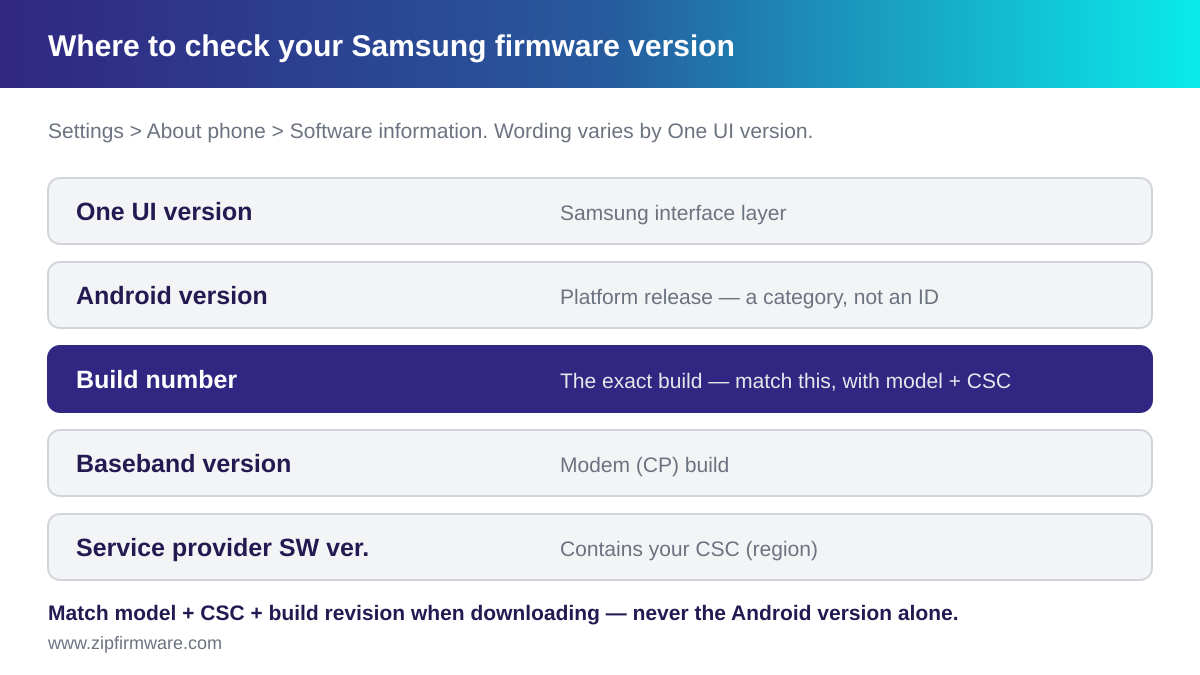
This is the route to use whenever the phone boots. It needs no cable, no dialer code and no extra app. Menu wording and nesting differ across One UI versions, carriers and regions, so treat the labels below as what to look for rather than a fixed path.
- Open Settings.
- Open the entry about the device itself, commonly labelled About phone.
- Open the software sub-entry, commonly labelled Software information.
If you cannot find it, use the search box in Settings and search for the field name, such as “Build number”.
Do not tap the Build number repeatedly. On Android, tapping that row several times is the gesture that unlocks Developer options. You only need to read the value, not tap it. If you unlock Developer options by accident, you can turn them off again in Settings.
What each field tells you
| Field | What it tells you | When you need it |
|---|---|---|
| One UI version | The version of Samsung’s interface layer | Checking whether a Samsung feature applies to your device |
| Android version | The underlying Android platform release | App compatibility. Not enough to identify a firmware build |
| Build number | The specific build installed, including the revision | Matching a stock ROM download |
| Baseband version | The modem (CP) build | Diagnosing signal, calling or mobile data faults |
| Kernel version | The Linux kernel the system runs | Low-level troubleshooting |
| Service provider SW ver. | Region and carrier software details, including your CSC | Choosing the correct regional variant |
Write down three things together: your model number, your CSC, and your build number. Those three as a set are what a firmware download must match. Any one of them alone is ambiguous.
Other ways to check, including when the phone will not boot
The *#1234# information code
On many Samsung devices, entering *#1234# in the dialer opens a read-only screen listing three values:
- AP — the main system build, the same value shown as the build number
- CP — the modem build, matching the baseband version
- CSC — the region customisation build
Availability varies by model and carrier build, so treat it as something to try rather than something guaranteed. If nothing happens, use the Settings route.
A caution about service codes:
*#1234#only displays information. Other Samsung codes open engineering menus that can change network or device configuration. Do not enter codes you cannot identify, and do not change values in a menu you did not intend to open.
When the device will not boot
If the phone cannot reach Settings, you have fewer options and it becomes more important not to guess:
- Download mode. On many models the Download mode screen displays firmware-related information. What is shown varies by device, so read what is actually on your screen rather than expecting specific fields. See the Odin guide for how to enter Download mode.
- The retail box. The label commonly carries the model number and the sales code, though exactly what is printed varies by region and retailer.
- Samsung support. If you need to confirm details tied to your serial number or IMEI, Samsung’s own support channels are the appropriate place to ask. Do not submit your IMEI to unknown third-party lookup services.
Guessing is what bricks devices. If you cannot establish your model and region with confidence, stop and confirm before downloading anything.
Proof that “I’m on Android 16” is not enough
This is the point where most people go wrong, so here is real evidence rather than an assertion.
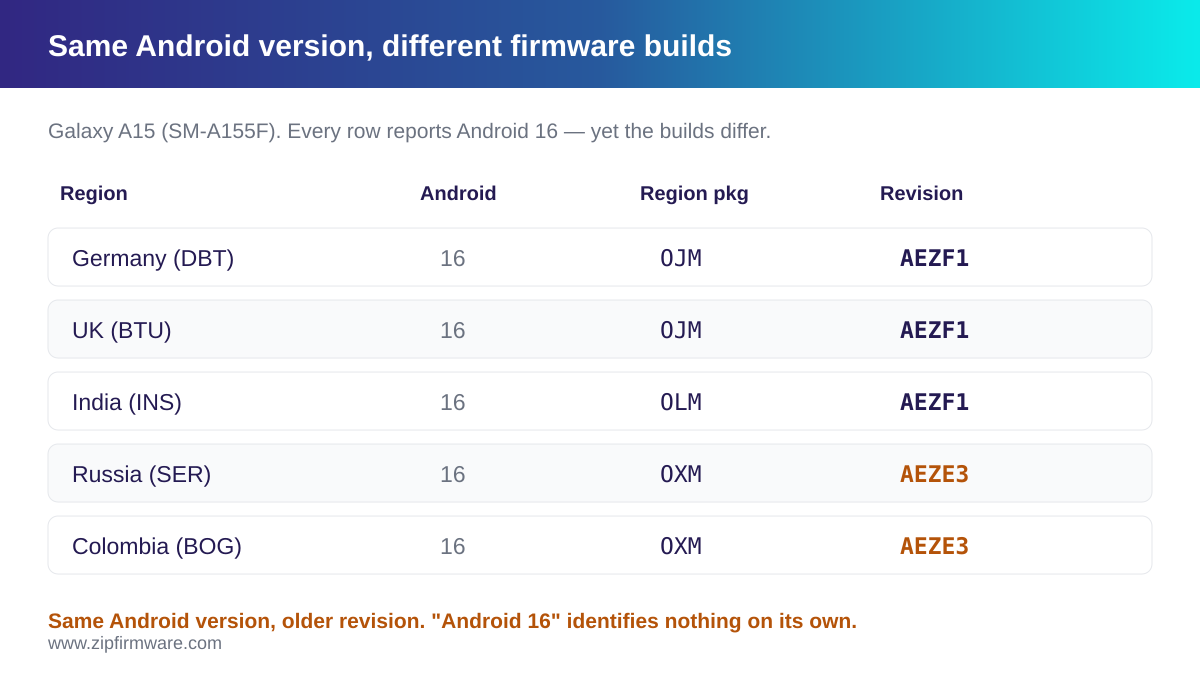
Below are live Samsung firmware records for one device, the Galaxy A15 (SM-A155F). Every row is the same model, and every row reports Android 16. Look at what actually differs.
| Region (CSC) | Android | Full version string |
|---|---|---|
| Germany (DBT) | 16 | A155FXXUAEZF1 / A155FOJMAEZF1 / A155FXXUAEZF1 / A155FXXUAEZF1 |
| UK (BTU) | 16 | A155FXXUAEZF1 / A155FOJMAEZF1 / A155FXXUAEZF1 / A155FXXUAEZF1 |
| France (XEF) | 16 | A155FXXUAEZF1 / A155FOJMAEZF1 / A155FXXUAEZF1 / A155FXXUAEZF1 |
| India (INS) | 16 | A155FXXUAEZF1 / A155FOLMAEZF1 / A155FXXUAEZF1 / A155FXXUAEZF1 |
| Thailand (THL) | 16 | A155FXXUAEZF1 / A155FOLMAEZF1 / A155FXXUAEZF1 / A155FXXUAEZF1 |
| Russia (SER) | 16 | A155FXXUAEZF1 / A155FOXMAEZE3 / A155FXXUAEZF1 / A155FXXUAEZF1 |
| Colombia (BOG) | 16 | A155FXXUAEZF1 / A155FOXMAEZE3 / A155FXXUAEZE3 / A155FXXUAEZF1 |
Three things fall out of this, and none of them are visible from the Android version alone.
1. The same Android version covers different builds
Every row says Android 16. But Colombia and Russia are on a AEZE3 region component while Germany, the UK and France are on AEZF1. Telling a support forum “I’m on Android 16” identifies almost nothing.
2. The four components can sit on different revisions
Look closely at the Colombia row. Its system component ends AEZF1, but its region and modem components end AEZE3 — an older revision. The parts of a firmware package do not have to move together, which is exactly why you match the full string rather than one field.
3. Region decides which build you get
India and Thailand share the OLM region package; Germany, the UK and France share OJM. Your CSC determines which of these your device follows. See Samsung CSC codes explained.
The practical rule: your firmware is identified by your model number, your CSC and the build revision together. The Android version is a category, not an identity — and no single one of the three is enough on its own.
What each part of the version string means
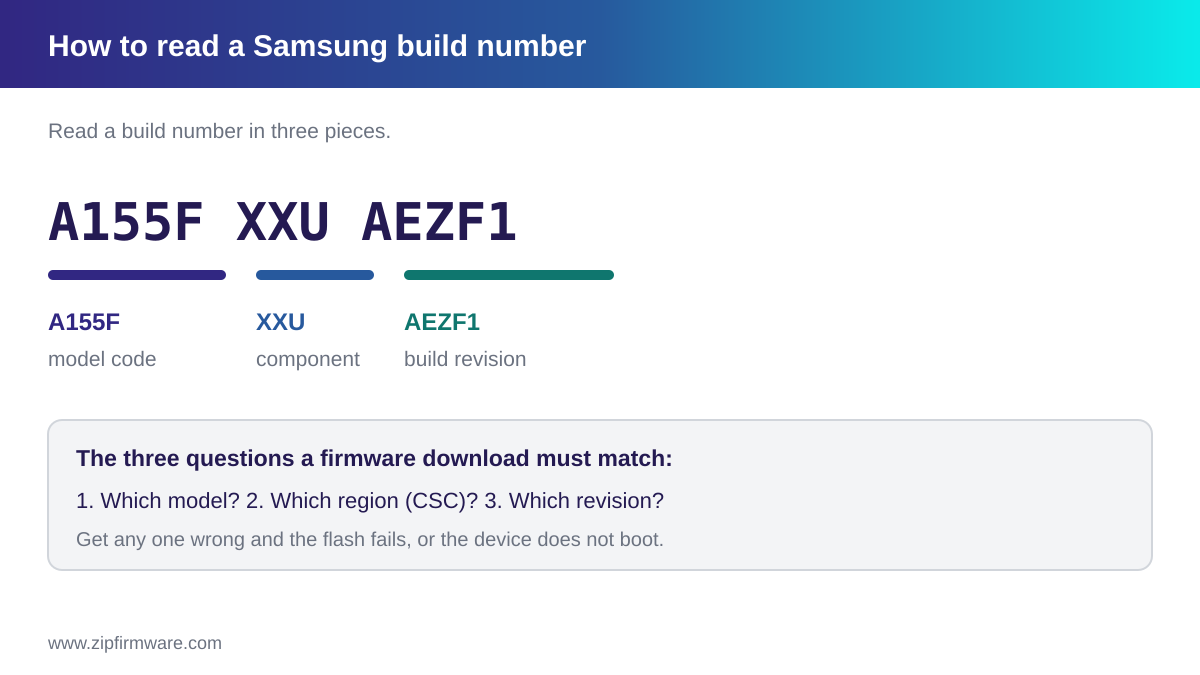
Take the Germany row above and break it apart:
A155FXXUAEZF1 / A155FOJMAEZF1 / A155FXXUAEZF1 / A155FXXUAEZF1
| Position | Value | What it is | Where you see it on the phone |
|---|---|---|---|
| 1 | A155FXXUAEZF1 |
AP — the main system build | Build number |
| 2 | A155FOJMAEZF1 |
CSC — the region customisation | Service provider software version |
| 3 | A155FXXUAEZF1 |
CP — the modem build | Baseband version |
| 4 | A155FXXUAEZF1 |
A fourth component; here it matches the AP value | — |
Each value begins with the model code, here A155F. Strip that off and the next three characters identify the component: XXU on the system build, OJM on the region build. The characters after that are the build revision, which is what changes as updates ship.
You do not need to decode every character. What matters in practice is being able to answer three questions: which model, which region, and which revision. Those three are what a firmware download has to match.
Android version vs One UI version vs build number
These three get mixed up constantly, and the difference matters when you are choosing a firmware file.
| What it is | Shape | Identifies your firmware? | |
|---|---|---|---|
| Android version | The underlying platform release from Google | A number, such as 15 or 16 | No — many builds share one |
| One UI version | Samsung’s interface layer, built on a given Android release | A number in Samsung’s own sequence | No — it is broader than a build |
| Build number | The specific firmware build and revision | A code containing the model, component and revision | With your model and CSC, yes |
Each One UI major version is based on a particular Android release, but the two numbers are not the same and do not track each other. One UI 9, for example, is based on Android 17. So “One UI 9” and “Android 17” describe the same generation using different numbering, and neither tells you which build you are on.
The consequence is practical. Two phones can both report the same Android version, the same One UI version, and still run different builds with different security patch levels — as the Galaxy A15 data above shows. When you ask for help or download a ROM, give the build number, model and CSC.
Checking your security patch level
The Android security patch level appears in the same software information area, commonly labelled Android security patch level. It is shown as a date.
That date indicates which set of published Android security fixes the build includes. It is not the date the build was made or installed.
Why yours may be behind
Patches reach devices on a per-model, per-region schedule, and your CSC affects when your device is offered them. A device can therefore sit on a current Android version while carrying an older patch date — the two move independently.
Support windows also differ by device tier and age, so two devices bought at the same time may not receive patches for the same length of time. If your device has stopped receiving updates entirely, check Samsung’s published support information for your specific model rather than assuming.
If your patch level is behind
- Check for updates normally first, through the software update screen. This is the supported route and it preserves your data.
- Give it time. Staged rollouts mean the update may not have reached your region yet.
- Flashing manually is a fallback, not a first move. It carries real risk and, depending on the file you choose, erases the device.
If you do flash, match your model, CSC and a build revision no older than the one installed — anti-rollback protection can reject older builds — see the bootloader version guide, and how to fix SW REV CHECK FAIL if a flash has already been refused.
Finding your exact model number
Your model number is the part beginning SM-, for example SM-A155F. The trailing letters matter: they distinguish hardware variants sold in different markets, and those variants do not share firmware.
You will find it on the same software information screen, on the retail box label, and commonly on a label under the SIM tray or on the back of the device. Marketing names such as “Galaxy A15” are not model numbers — several distinct model numbers can share one marketing name.
If you are unsure, check the model number in more than one place before downloading anything.
Checking whether you are on the latest build
Once you have your model, CSC and build number, you can tell whether a newer build exists.
- Check on the device first. The software update screen is the supported route and the safest way to move forward.
- Compare against published firmware. Look up your model and CSC in the ZipFirmware archive and compare the build revision against yours.
- Expect regional lag. A newer build existing for another region does not mean it has been released for yours. Different CSCs move on different schedules.
If your region is genuinely behind, waiting is usually the right call. Flashing another region’s firmware changes your update branch and, with a full CSC file, erases the device — see Samsung CSC codes explained before doing that.
Common mistakes
- Quoting only the Android version. It identifies a generation, not a build.
- Ignoring the trailing letters of the model number.
SM-A155Fand a differently suffixed variant are not interchangeable. - Assuming the sales code equals the active CSC. On a second-hand device, verify.
- Reading only the build number and not the CSC. You need both, plus the model.
- Tapping the build number repeatedly and unlocking Developer options by accident.
- Trusting a third-party IMEI lookup site with your device identifiers.
Frequently asked questions
How do I check my Samsung firmware version?
Open Settings → About phone → Software information and read the Build number. The Service provider SW ver. entry contains your CSC, and Baseband version is the modem build. On many devices *#1234# in the dialer shows AP, CP and CSC together.
What is the difference between build number and Android version?
The Android version is the platform generation, such as 16. The build number identifies the specific firmware build and revision. Many different builds share a single Android version.
Where do I find my CSC?
In the Service provider SW ver. entry on the software information screen, or on the *#1234# screen. See Samsung CSC codes explained.
How do I check my version if the phone will not turn on?
Use the retail box label for the model and sales code, or read what the Download mode screen displays. If neither is available, confirm with Samsung support rather than guessing.
What does the security patch level date mean?
It indicates which set of published Android security fixes the installed build includes. It is not the build or install date.
My friend has the same phone on a newer build. Why?
Almost certainly a different CSC. Updates roll out per region and carrier on different schedules, so the same model can sit on different builds in different markets.
Is it safe to flash a newer build from another region?
It changes your update branch and, with a full CSC file, erases the device. It is possible but it is not a routine update — read the CSC guide first.
Final thoughts
Checking your firmware version takes under a minute, and it is the step that makes everything else safe. Record three values together — model number, CSC and build number — and you can download the right file, ask a useful question, and avoid the mismatches that cause failed flashes.
Related reading:
- Samsung CSC codes explained
- How to flash Samsung firmware with Odin
- Samsung firmware files explained: AP, BL, CP and CSC
- How to update your Samsung Galaxy
- One UI version history
- Samsung bootloader version guide
Find firmware for your exact model and region in the ZipFirmware archive.
ZipFirmware
We maintain the ZipFirmware archive of official Samsung stock ROMs. Every guide here is written from the same files you download.