


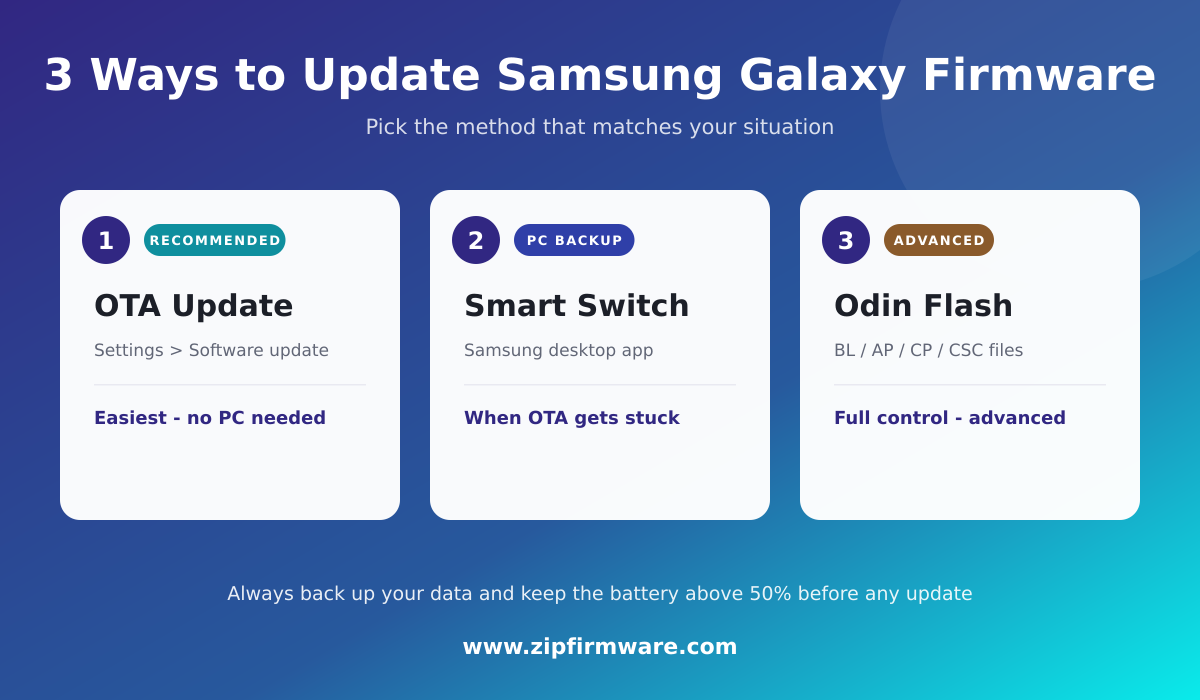
There are three safe ways to update Samsung Galaxy firmware: the built-in over-the-air (OTA) updater, Samsung Smart Switch on a PC, and manual flashing with Odin using firmware you download yourself. Keeping your Galaxy current brings security patches, bug fixes, new One UI features, and better battery life and performance. In this guide, our team walks you through each method, when to use it, what to prepare first, and how to avoid the mistakes that put a device at risk.
Before You Update Samsung Galaxy Firmware
No matter which method you choose, a little preparation prevents most problems. Take a few minutes to get these in order:
- Back up your data. Use Samsung Cloud, a Google account, or Smart Switch to save photos, contacts, and messages. Manual flashing in particular can wipe the device.
- Charge the battery. Make sure you have at least 50% charge, and ideally more, before starting any update.
- Use a stable connection. OTA and Smart Switch downloads need reliable Wi-Fi. A manual flash needs a solid USB cable and a working PC.
- Know your exact model and region. Check Settings > About phone for your model number (for example, SM-S911B) and your current firmware version. This matters most for manual updates.
Method 1: Over-the-Air (OTA) Update
OTA is the easiest and safest method, and it is the right choice for the vast majority of users. Samsung pushes updates directly to your phone, so nothing needs to be downloaded to a computer.
- Connect to Wi-Fi and make sure the battery is charged.
- Open Settings and scroll down to Software update.
- Tap Download and install.
- If an update is available, review the details and tap Download, then Install now when prompted.
- The phone will restart to apply the update. This can take several minutes, and it is normal for the screen to show a progress bar during installation.
Do not power off or restart the device manually while it is installing. If no update appears, your phone may already be current, or the rollout may not have reached your region yet, since Samsung releases firmware in waves.
Method 2: Samsung Smart Switch on a PC
Smart Switch is Samsung’s free desktop application for Windows and Mac. It is a good middle-ground option when an OTA update fails to download or gets stuck, or when you simply want to update from a computer with a more stable connection.
- Download and install Samsung Smart Switch on your PC or Mac from Samsung’s official website.
- Connect your Galaxy to the computer with a USB cable and unlock the phone.
- Open Smart Switch. If a newer firmware is available for your device, it will prompt you to Update.
- Follow the on-screen steps and keep the cable connected until the process finishes and the phone reboots.
Smart Switch delivers the same official firmware Samsung ships over the air, so it will not offer a build that is not yet approved for your device. It is also the tool many people use for backups, which makes it convenient to run before any bigger update.
Method 3: Manual Flashing with Odin
Manual flashing gives you the most control, but it also carries the most risk and is meant for advanced users. Consider it when the update you need is not yet available over the air in your region, when you imported a device from another market, or when you need a specific build number. It requires the exact firmware for your model.
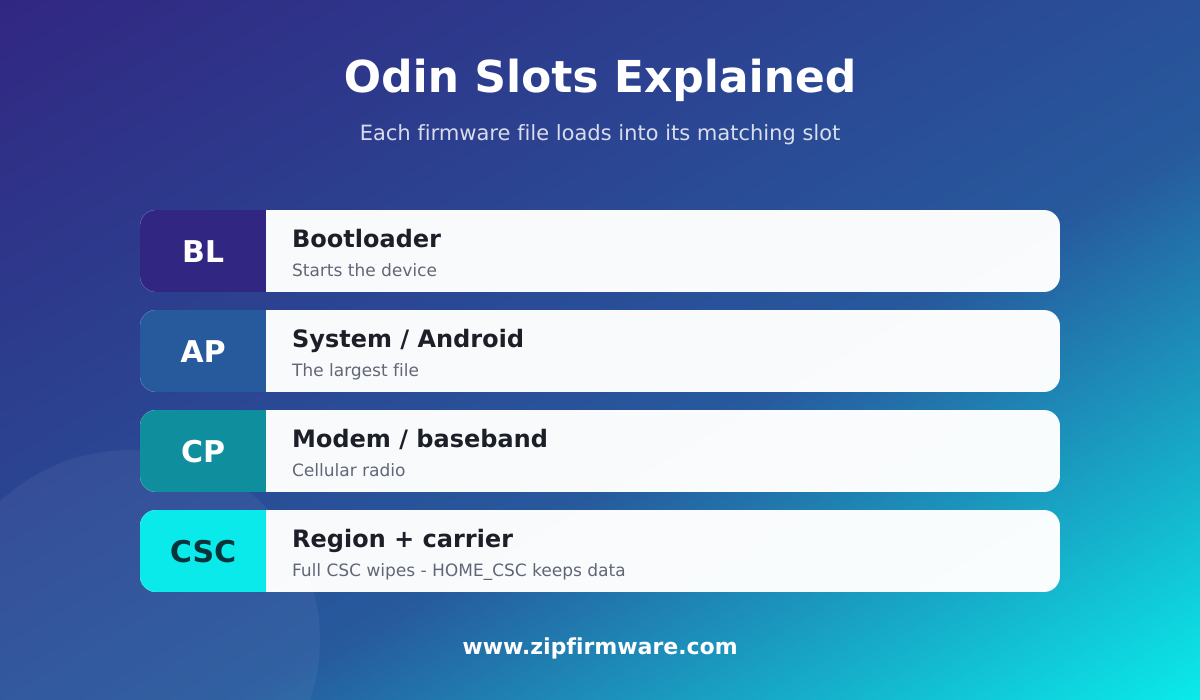
To flash manually you will need a Windows PC, the Odin flashing tool, the Samsung USB drivers installed, a good USB cable, and the correct firmware package. The firmware for modern Galaxy devices is split into several files, typically labeled BL, AP, CP, and CSC.
- Extract the firmware archive on your PC so you can see the individual BL, AP, CP, and CSC files.
- Boot the phone into Download mode (also called Odin mode). The exact button combination varies by model; on many recent devices you hold both volume keys while connecting the USB cable to the PC, then press Volume Up to confirm.
- Open Odin. When it detects the phone, the ID:COM box lights up (often blue) to confirm the connection.
- Load each firmware file into its matching slot: BL, AP, CP, and CSC. Choose the standard CSC file for a clean install, or the HOME_CSC file if you want to try to keep your data.
- Leave the default options as they are, then click Start and wait for the process to complete and show a PASS result.
Never disconnect the cable, close Odin, or power off the phone during a flash. Interrupting the process, or flashing firmware that does not exactly match your model and region, can hard-brick the device.
Match the model number and the region code (CSC) precisely, and avoid downgrading to older firmware, which can fail or cause boot problems on newer hardware. Reassuringly, official stock firmware does not trip the Knox security fuse. Custom software such as unofficial ROMs, root binaries, or modified boot images is what permanently sets Knox and can void warranty features. For the full walkthrough, see our complete Odin flashing guide.
Ready to update manually? Download the correct official stock firmware for your exact model number and region directly from ZipFirmware, then follow the Odin steps above.
Which Method Should You Use?
The safest way to update Samsung Galaxy firmware is whichever method matches your situation:
- Most people: use OTA. It is automatic, safe, and requires no computer.
- OTA not working or you prefer a PC: use Smart Switch.
- Need a specific build, imported device, or region not served yet: flash manually with Odin and matching firmware.
Common Issues and FAQ
My phone says it is up to date, but I know a newer version exists. Samsung rolls out firmware region by region. Your build may simply not be released for your CSC yet, which is exactly when a manual update helps.
Will updating erase my data? OTA and Smart Switch updates keep your data. A manual Odin flash can wipe it, so always back up first.
The Odin flash failed. Check that you used the exact firmware for your model, that the drivers are installed, and that the cable and USB port are reliable. Then retry from Download mode.
Can I downgrade? Often you cannot, because the bootloader version can block older firmware. Stick to the same or newer builds for your device.
How often should I update Samsung Galaxy firmware? Install security patches as soon as they reach your device, and major One UI releases once the rollout is stable in your region.
Conclusion
For everyday updates, the built-in OTA updater under Settings > Software update is the simplest and safest path, with Smart Switch as a dependable PC-based backup. Manual flashing with Odin unlocks full control for the cases OTA cannot handle, as long as you use the exact firmware for your model and region and never interrupt the process. Prepare properly, choose the method that fits your situation, and you can update Samsung Galaxy firmware safely and keep your device secure.
ZipFirmware
We maintain the ZipFirmware archive of official Samsung stock ROMs. Every guide here is written from the same files you download.